Searching: verses, words, topics, Hebrew and Strong's numbers
The magnifying glass at the top is more than a word search. It goes straight to a verse, searches the translation you are reading, forgives spelling slips, finds every form of a Hebrew or Greek word, and shows you the tools, discoveries, people and guides on the site that match what you typed.
- Open the search box
- Go straight to a verse
- Search English words
- Search in your translation, and the others
- Search an exact phrase
- Find topics, discoveries and tools
- Search a Hebrew or Greek word
- Read results in Hebrew, English or both
- Follow a Strong's number
- Type in Hebrew or Greek
- Go back to your reading
Step 1: Open the search box
Tap the magnifying glass at the top of the reader. You can type a verse (John 3:16), an English word or phrase (lovingkindness), a topic (Erastus inscription), a Hebrew word (אלהים), a Greek word (λόγος) or a Strong's number (H7225). Press Enter to open the full search.
Step 2: Go straight to a verse
Type a reference such as Romans 16:23 and press Enter to jump right to it. Small slips are fine: roamns 15:23 still takes you to Romans 15:23. Inside the full search, a reference shows as a Go to button at the top.
Step 3: Search English words
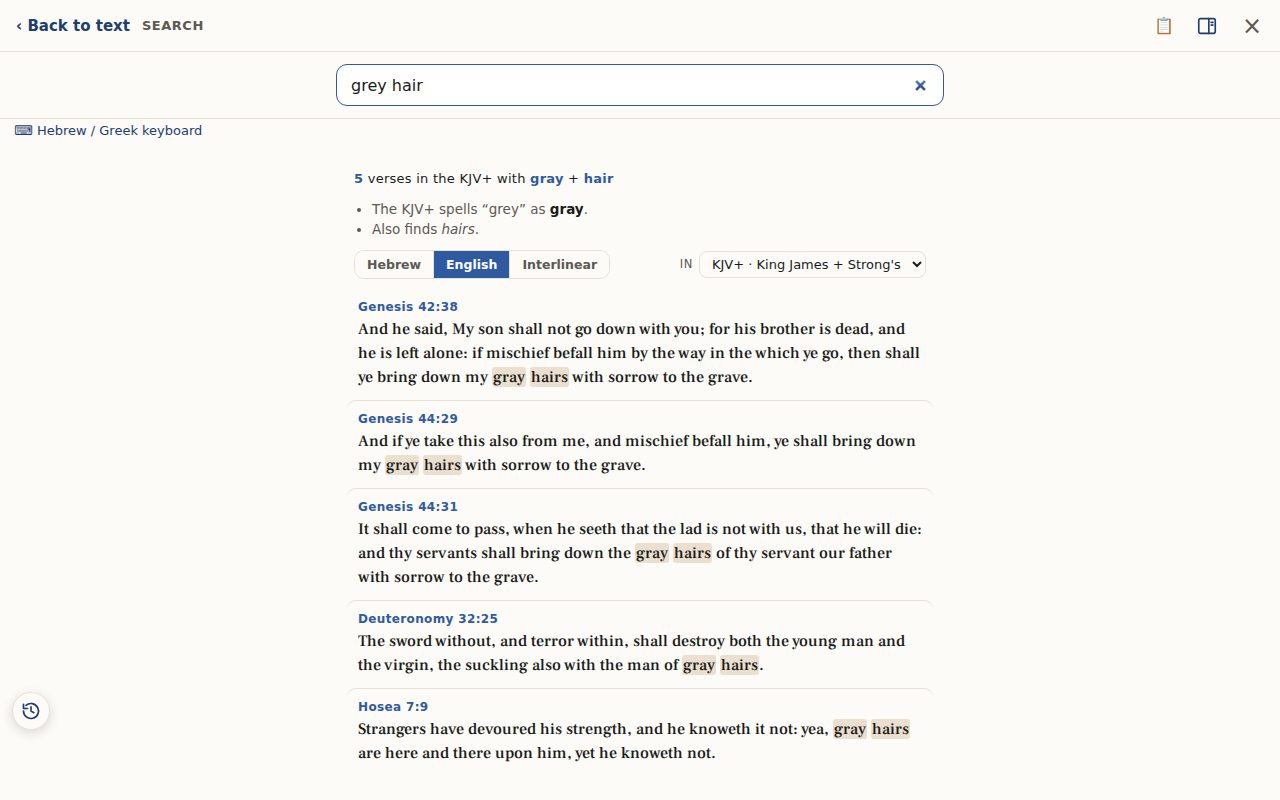
Type a word or two, such as grey hair, and press Enter. Search is forgiving: it knows the King James spells it gray, finds hairs as well as hair, fixes small typos, and leaves out little words like what and the. A short note under the count always tells you what it changed.
Step 4: Search in your translation, and the others
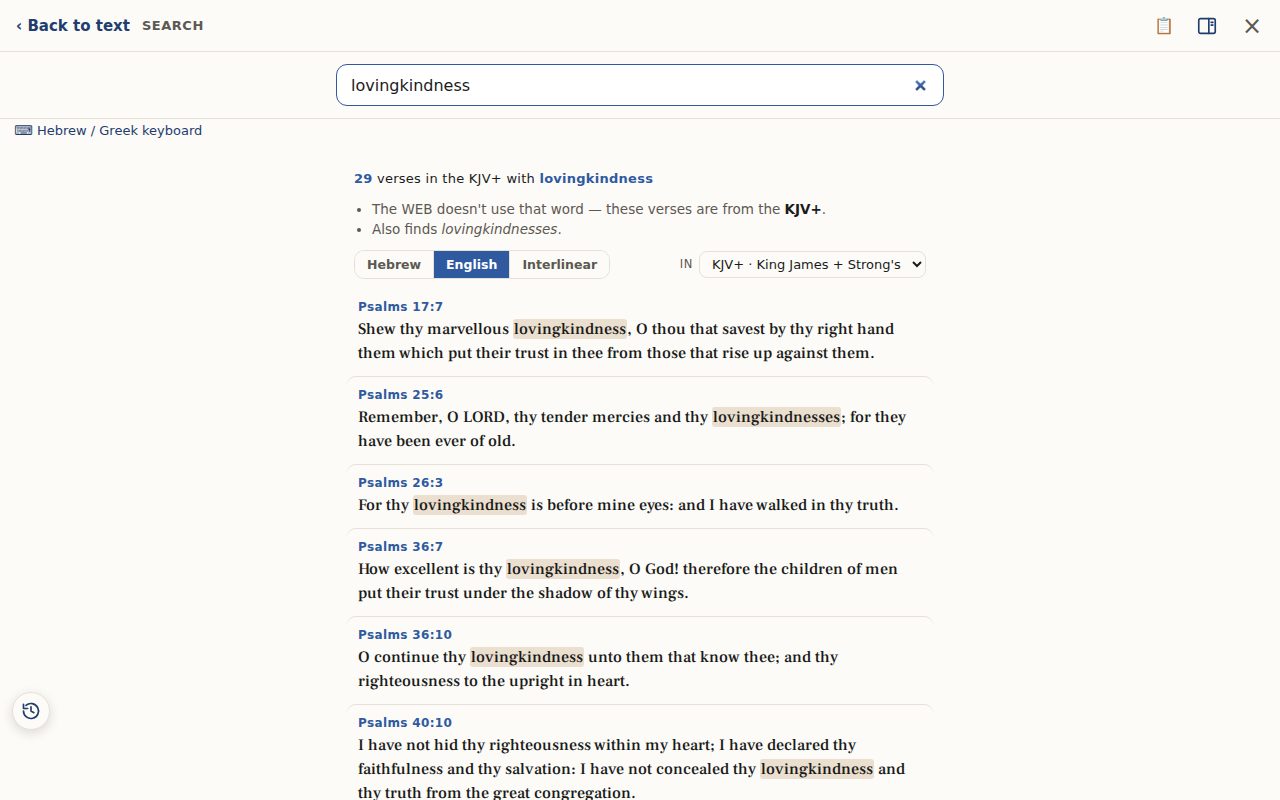
Search looks in the translation you are reading. Reading the Berean Standard Bible? You get BSB verses, and tapping one opens it in the BSB. If your translation never uses a word you typed, search checks the other translations on the site and tells you which one the verses came from. A World English Bible reader who searches lovingkindness gets the King James verses, with a note saying so. Spanish works too, in the Reina-Valera, and accents are optional. The in menu above the results shows the same verses in any other translation.
Step 5: Search an exact phrase
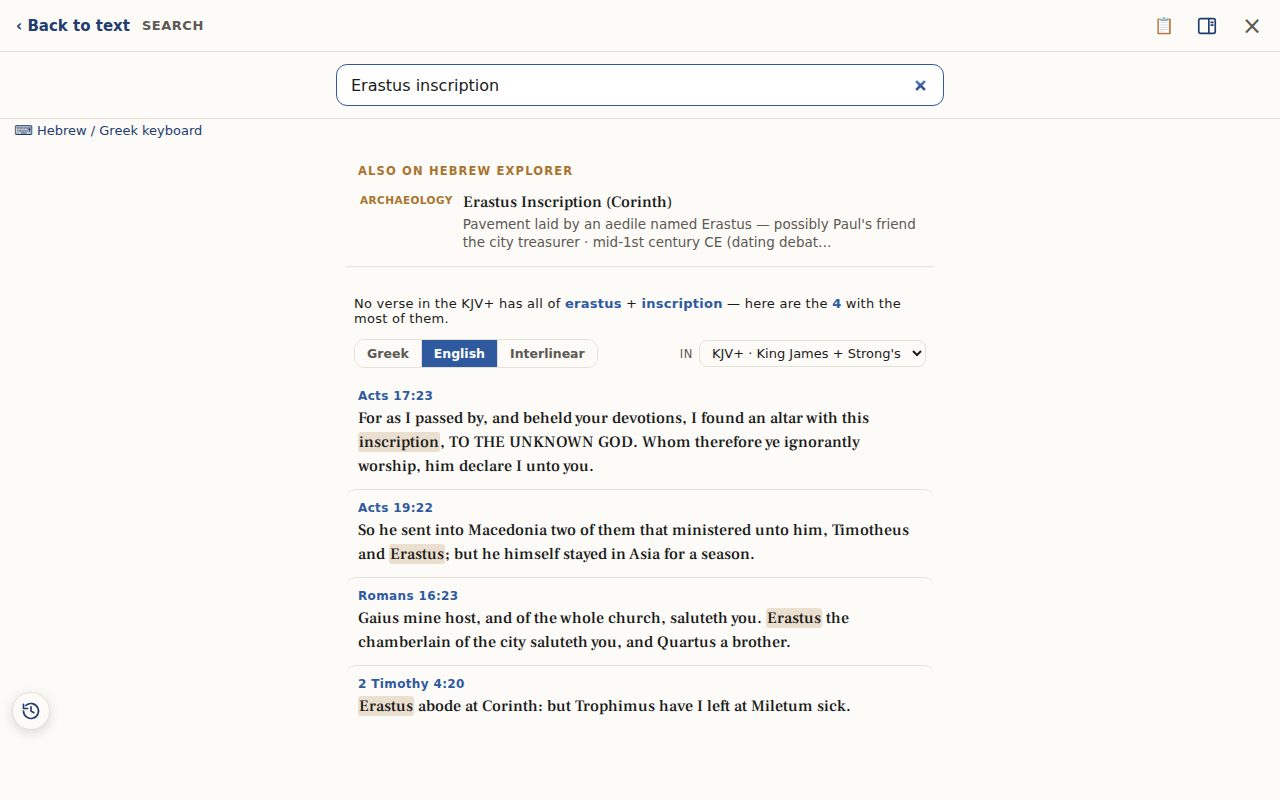
Put the words in quotation marks, like "in the beginning", to find only verses with those words together and in that order. When no verse has every word you typed, search shows the verses with the most of them instead of nothing at all.
Step 6: Find topics, discoveries and tools
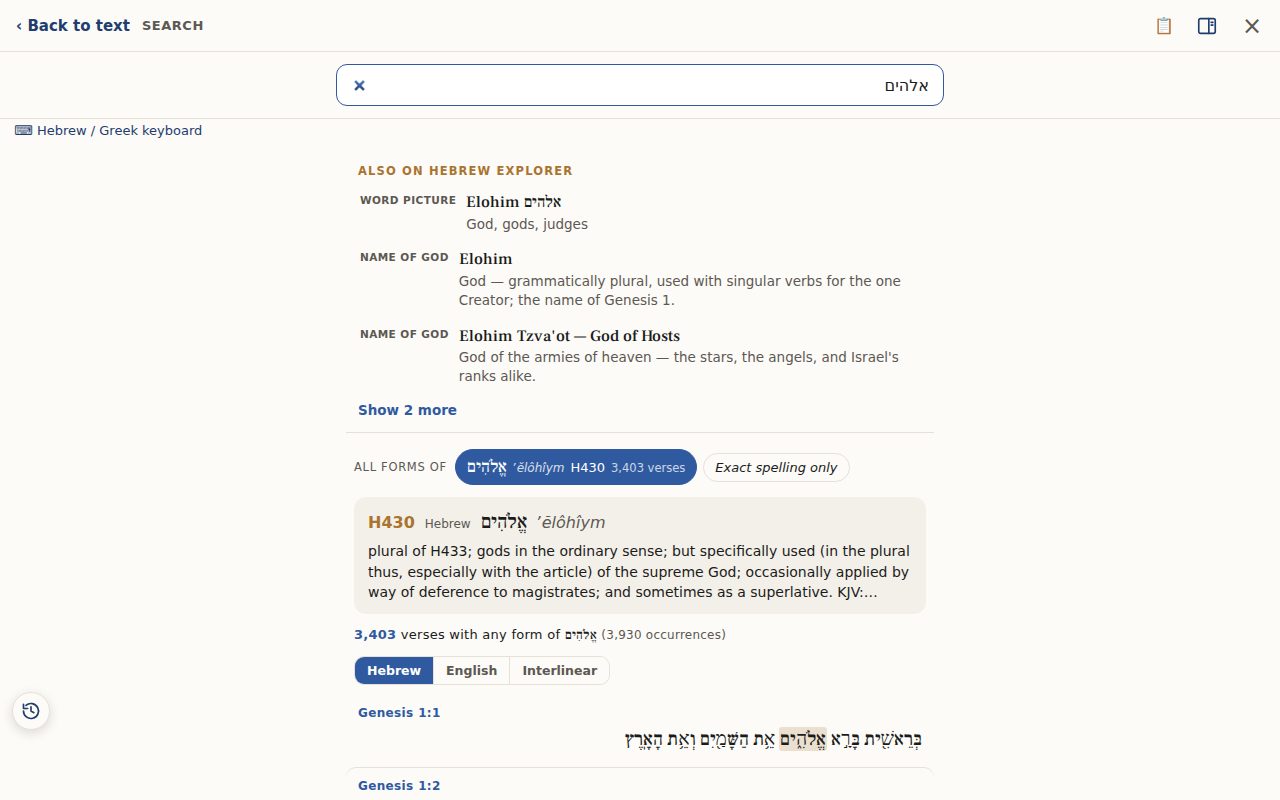
Above the verses, Also on Hebrew Explorer lists the rest of the site that matches: archaeology finds, Bible heroes, places, tribes, Torah portions, prayers, Names of God, how-to guides, blog posts and the study tools themselves. Try Erastus inscription or Passover, and tap a row to open it. Tap Show more for the rest of the list.
Step 7: Search a Hebrew or Greek word
Type a Hebrew word such as אלהים. Search finds every form of the word, with or without prefixes like the, and or to — over 3,400 verses for Elohim. Vowel points are optional, and modern spellings work too. If the letters could be more than one word, pick the one you mean from the buttons at the top: דבר can be davar (word) or dabar (to speak). Tap Exact spelling only to find just the letters you typed.
Step 8: Read results in Hebrew, English or both
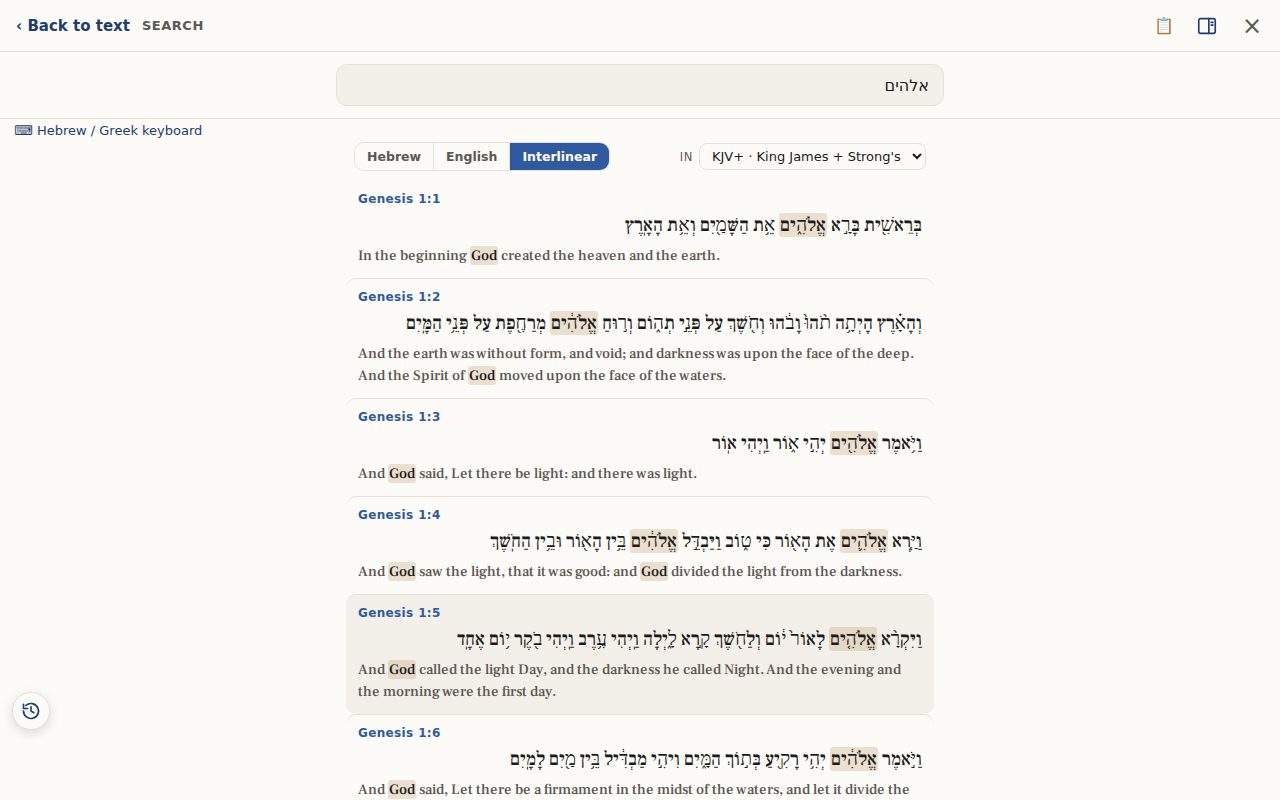
Above the verses, choose Hebrew (or Greek), English or Interlinear. Interlinear shows the original line with the English under it, and the word you searched is highlighted in both. In English and Interlinear, the in menu picks the translation. Search remembers your choice for next time.
Step 9: Follow a Strong's number
Type a Strong's number such as H7225 (Hebrew) or G3056 (Greek). You get every verse where that original word stands, whatever English word the translators chose. This is the heart of word study.
Step 10: Type in Hebrew or Greek
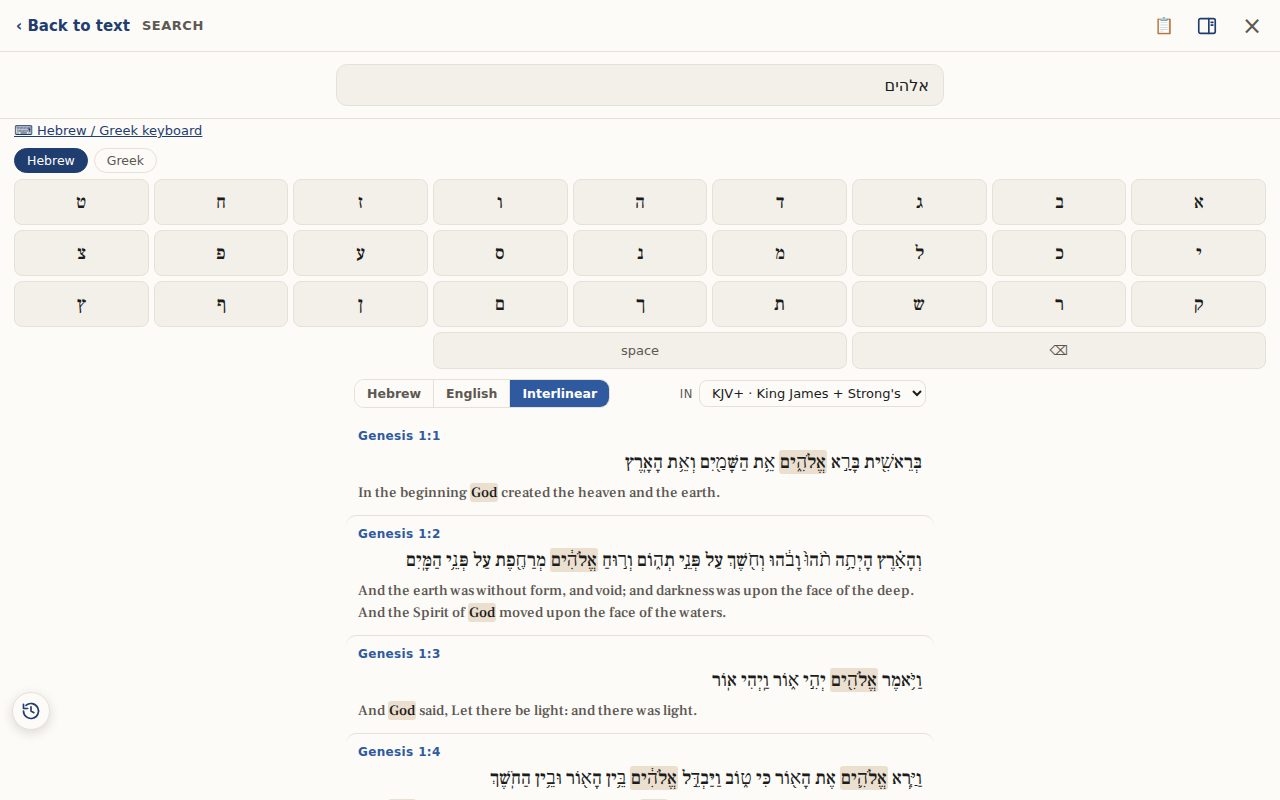
Tap ⌨ Hebrew / Greek keyboard under the box to type Hebrew or Greek letters on screen. You do not need a Hebrew keyboard on your computer or phone.
Step 11: Go back to your reading
Tap a verse to open it in its chapter, or tap ‹ Back to text at the top left to return to the chapter you were reading.
Related tutorials
- Tap a word: reading the lexiconOpen any Hebrew or Greek word to see its meaning, pronunciation, gematria, every place it appears, and the classic lexicons.Free 6 min · Beginner
- Choosing a translation — English, Hebrew, Greek and moreSwitch between English versions, the Hebrew and Greek originals, the Septuagint and Spanish.Free 4 min · Beginner
- Typing Hebrew and Greek with the on-screen keyboardType Hebrew or Greek letters in any search box. No special keyboard needed.Free 2 min · Beginner
- Biblical Archaeology: discoveries alongside the storyBrowse 533 discoveries by era and kind: steles, seals, coins, cities and scrolls, each tied to the verses it touches.Free 5 min · Beginner